Why printers ask for single pages
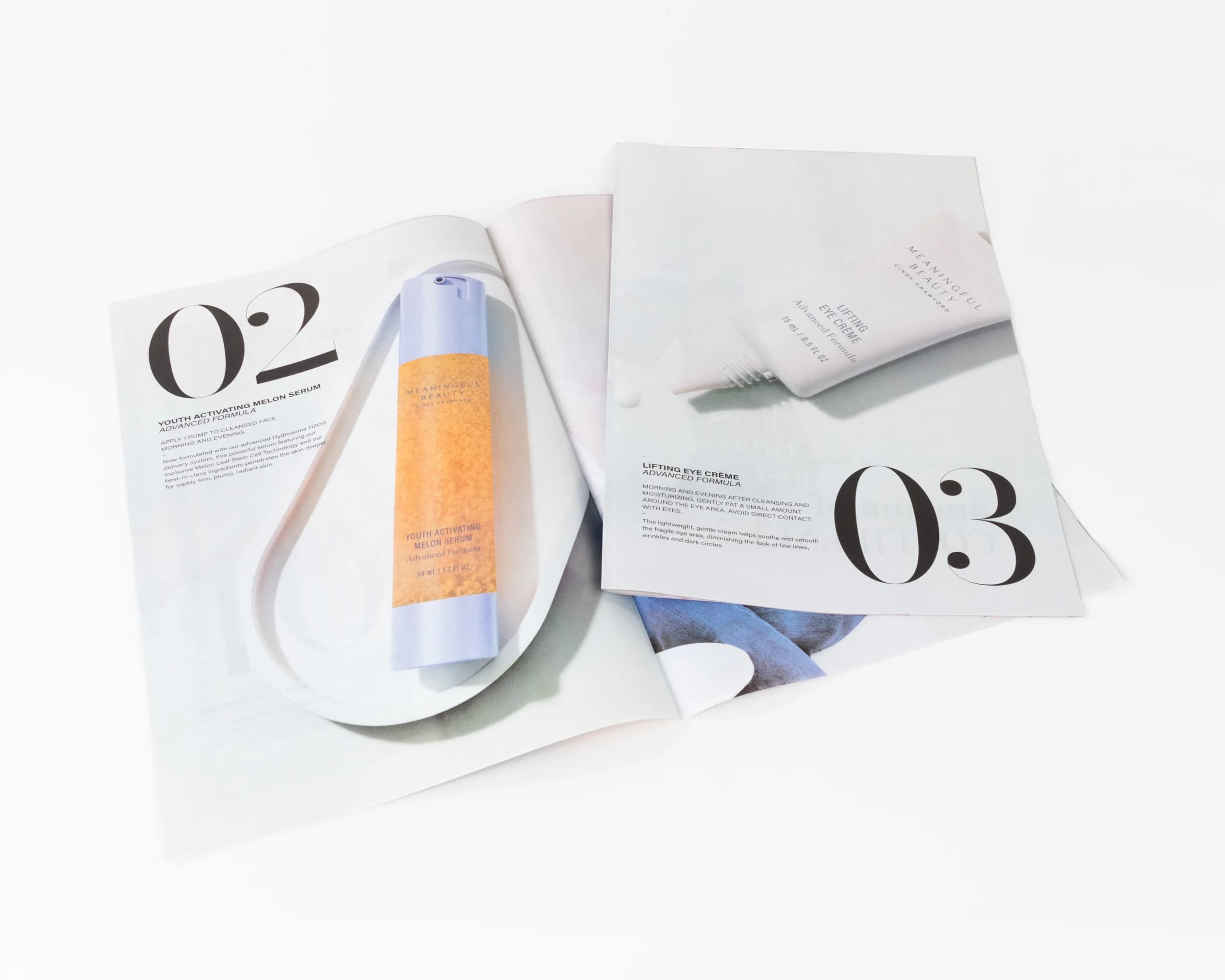
Designers often build a magazine, booklet, catalog, or book in reader spreads because that is how the finished piece will be viewed. A left page and right page sit side by side, which makes the design easier to judge while you are working.
For production, though, printers usually need the final PDF exported as single pages. That does not mean your spreads will be lost. It means each page is supplied individually so the printer can impose the job correctly for the press sheet, binding method, trim size, page count, and paper.
Reader spreads vs. printer spreads
Reader spreads show pages in the order a person reads them: page 2 beside page 3, page 4 beside page 5, and so on. Printer spreads are arranged for production, where multiple pages are printed on a larger sheet, folded, trimmed, and assembled into the finished piece.
Those production layouts change depending on the job. A saddle-stitched booklet, a perfect-bound book, a short digital run, and a large offset run may all need different imposition. The printer also has to account for creep, grain direction, press sheet size, trim, bleeds, and how pages back up to each other.
That is why sending single pages is usually the cleanest handoff. It gives the production team the flexibility to build the correct printer spreads without fighting a PDF that has already combined pages in a fixed layout.
When spreads can cause problems
Reader spreads can create confusion when page order, blank pages, covers, or crossovers are involved. If a printer has to split a spread PDF apart before imposing it, there is more room for accidental cropping, duplicated bleed, incorrect page pairing, or confusion around the cover sequence.
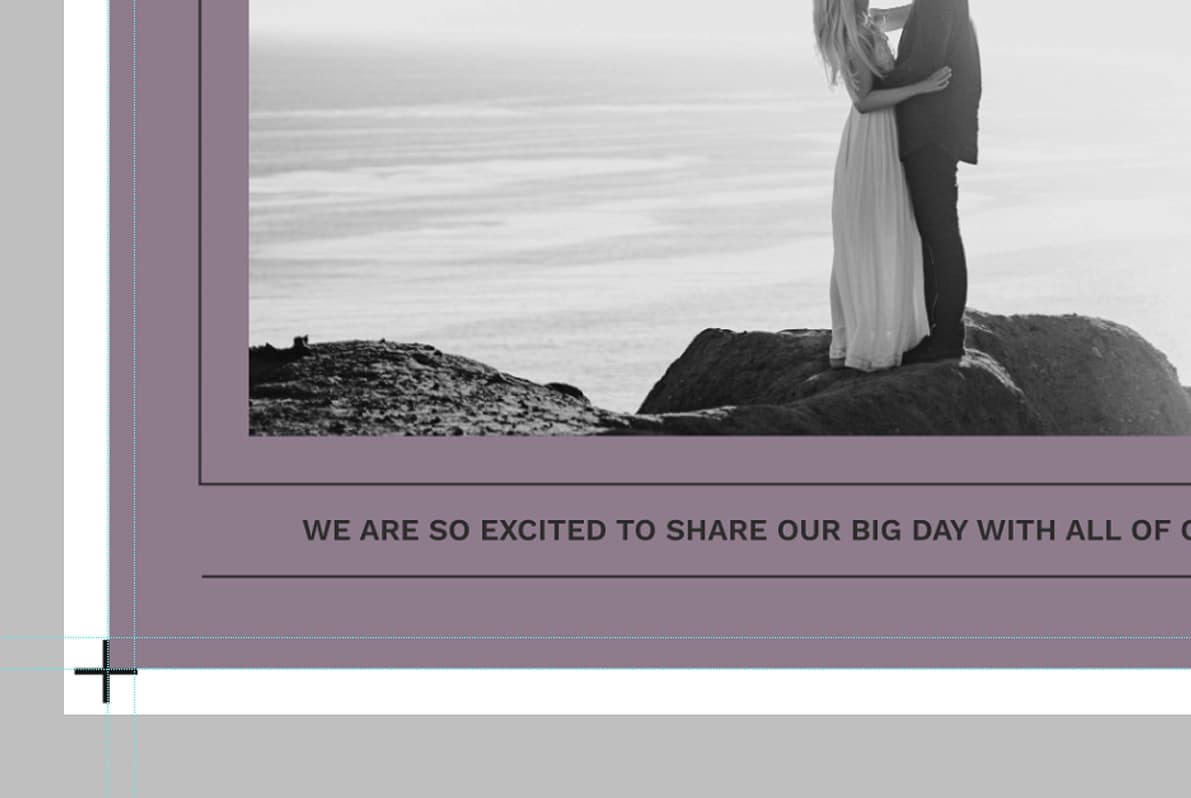
Spreads can also hide missing bleed. Artwork may appear to cross the gutter beautifully in the design file, but each page still needs its own bleed where it trims. Single-page exports make it easier to check whether every outer edge has enough image area past the trim line.
Common single-page export mistakes
The most common issue is exporting reader spreads because the preview looks more like the finished piece. That may feel intuitive, but it forces prepress to split the file apart before building the actual press layout. It is better to export pages individually, then let the printer handle imposition for the selected binding and press.
Another frequent issue is forgetting that covers may follow different rules from interior pages. A saddle-stitched booklet can often include cover pages in the same single-page PDF, while a perfect-bound book may need a separate flat cover with spine width. If you are printing a catalog, magazine, manual, or book with a spine, confirm the cover handoff before final export.
Finally, check that your export did not drop bleed, marks, image links, or embedded fonts. A file can technically be single-page and still fail prepress if the supporting production settings are missing.
Page order, blanks, and covers
Keep the interior PDF in normal reading order unless your printer gives a different instruction. Page 1 is usually the first printed page, followed by page 2, page 3, and the rest of the file in sequence. Do not remove intentional blank pages just because they look empty. Blank inside covers, spacer pages, and chapter openers can all affect how the piece backs up, folds, or binds.
Covers may need separate handling. Saddle-stitched booklets are often supplied as one single-page PDF that includes the front cover, inside front cover, interior pages, inside back cover, and back cover. Perfect-bound books may require the cover as a separate flat file with the front cover, spine, and back cover built to the final spine width. Confirm that handoff before exporting so prepress does not have to guess which pages belong together.
How to export single pages from InDesign
- Open the final InDesign document and confirm the page size, page count, bleed, and links are correct.
- Choose File, then Export.
- Select Adobe PDF (Print) as the export format.
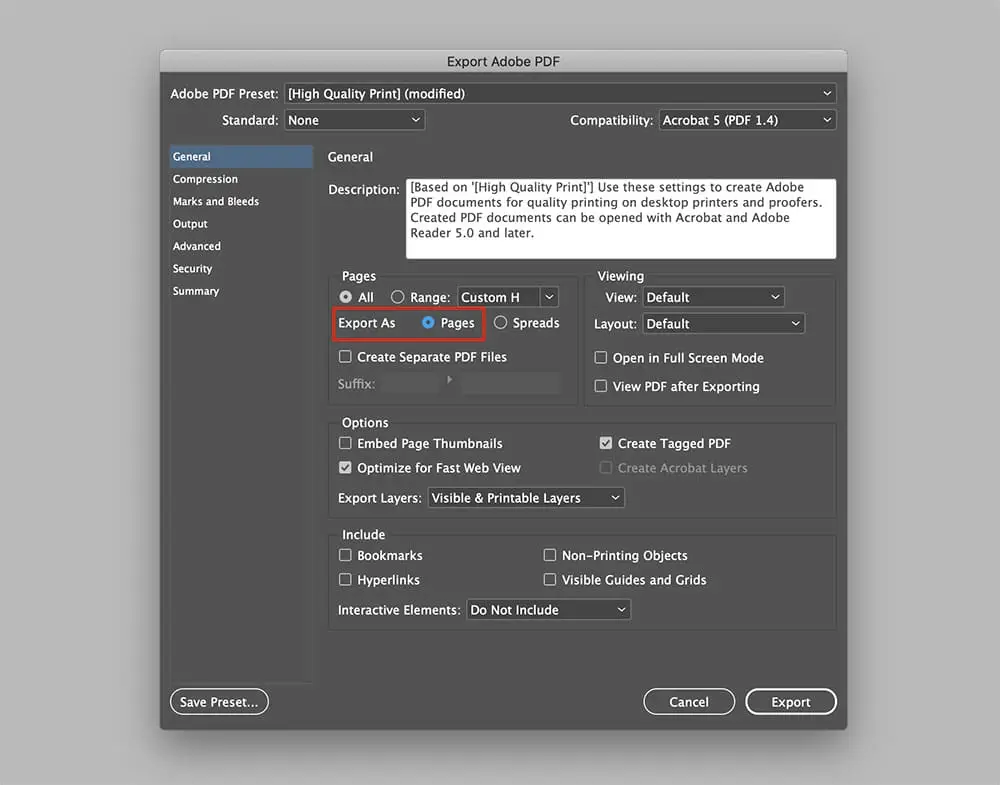
- In the Export Adobe PDF dialog, choose Pages instead of Spreads.
- Use the printer-requested PDF preset, or start with a press-quality preset if no custom preset was supplied.
- Include document bleed settings if your artwork reaches the trim edge.
- Export the PDF, then open it and click through page by page before uploading.
What to check before uploading
- Every page appears as one PDF page, not a two-page spread.
- The total page count matches the quote, order, and binding method.
- Blank inside covers, intentional blanks, and back cover pages are included where needed.
- Bleed extends beyond the trim on every edge with artwork that touches the edge.
- Fonts are embedded or outlined according to the printer's instructions.
- Images are high resolution enough for the final print size.
- Color is set up for print, usually CMYK or an approved spot-color workflow.
Download a free starter file
Use a pre-sized starter file with bleed, safe area, and color settings already built in before you export your final PDF.
Starter file options are loading.
Covers, gatefolds, and special formats
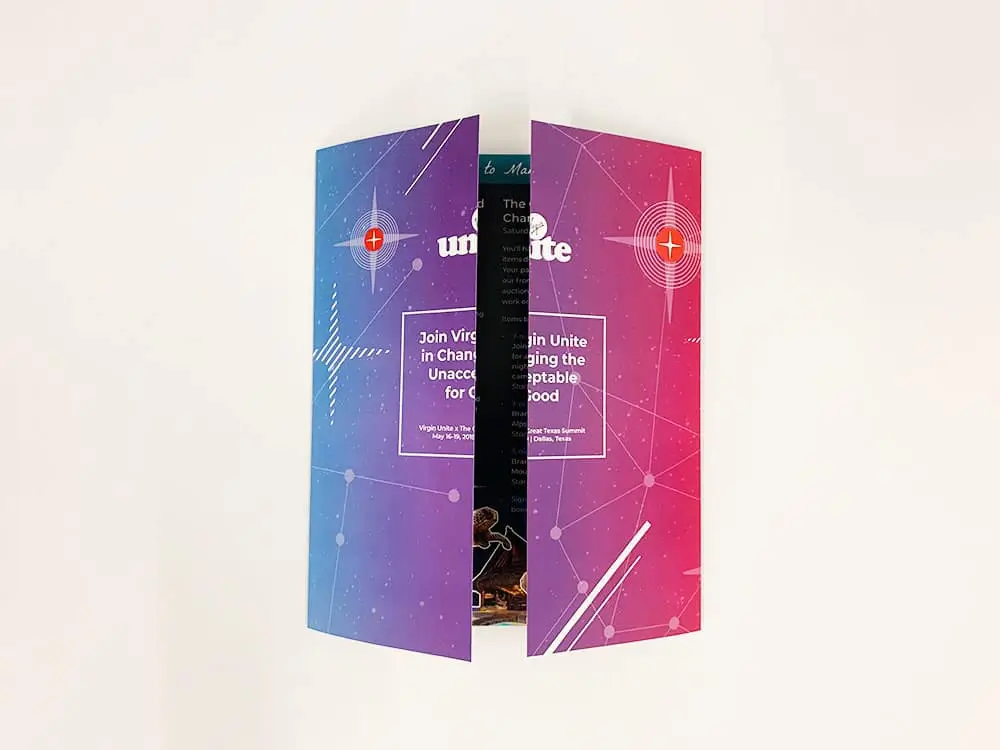
Some projects need extra instructions. A cover may be supplied as a separate file, especially for perfect binding where the front cover, spine, and back cover are built as one flat spread. Gatefolds, inserts, tabs, and unusual folds may also need a special production note.
If your document has a nonstandard format, do not guess. Ask whether the printer wants single pages, a separate cover spread, dielines, or a packaged native file. The right answer depends on how the piece will be printed and finished.
Related prepress steps
Exporting single pages is one piece of the prepress checklist. Before sending files, also review full bleed setup, font embedding, image resolution, and proof review. These checks help catch common issues before the job reaches press.
Work with us on your next print job
At Thomas Group Printing, we help designers and teams prepare files for polished commercial print results. If you are not sure whether your PDF should be supplied as single pages, reader spreads, or a special cover file, send us the project details. We can confirm the cleanest file handoff before production starts.